Import from a PDF: Turn Your Paper Registration Packet into an Online Form
Most camps already have a registration form. It is a PDF, it has been refined over years, and every question on it is there for a reason. Moving it online has meant retyping all of it, one question at a time. Campium's new Import from a PDF does that part for you.
Why moving a paper form online takes so long
A typical registration packet runs six pages or more: camper details, two guardians, emergency contacts, medical history, allergies, medications, photo release, a liability waiver, and a signature at the end. Rebuilding that in any online system means creating each question, typing its choices, deciding which ones are required, and working out where each answer should be stored.
That last part is easy to get wrong. If "Date of Birth" on the new form saves somewhere new instead of to the birth date you already track, your rosters and reports will not see it.
How it works
1. Start a new form and choose Import from a PDF
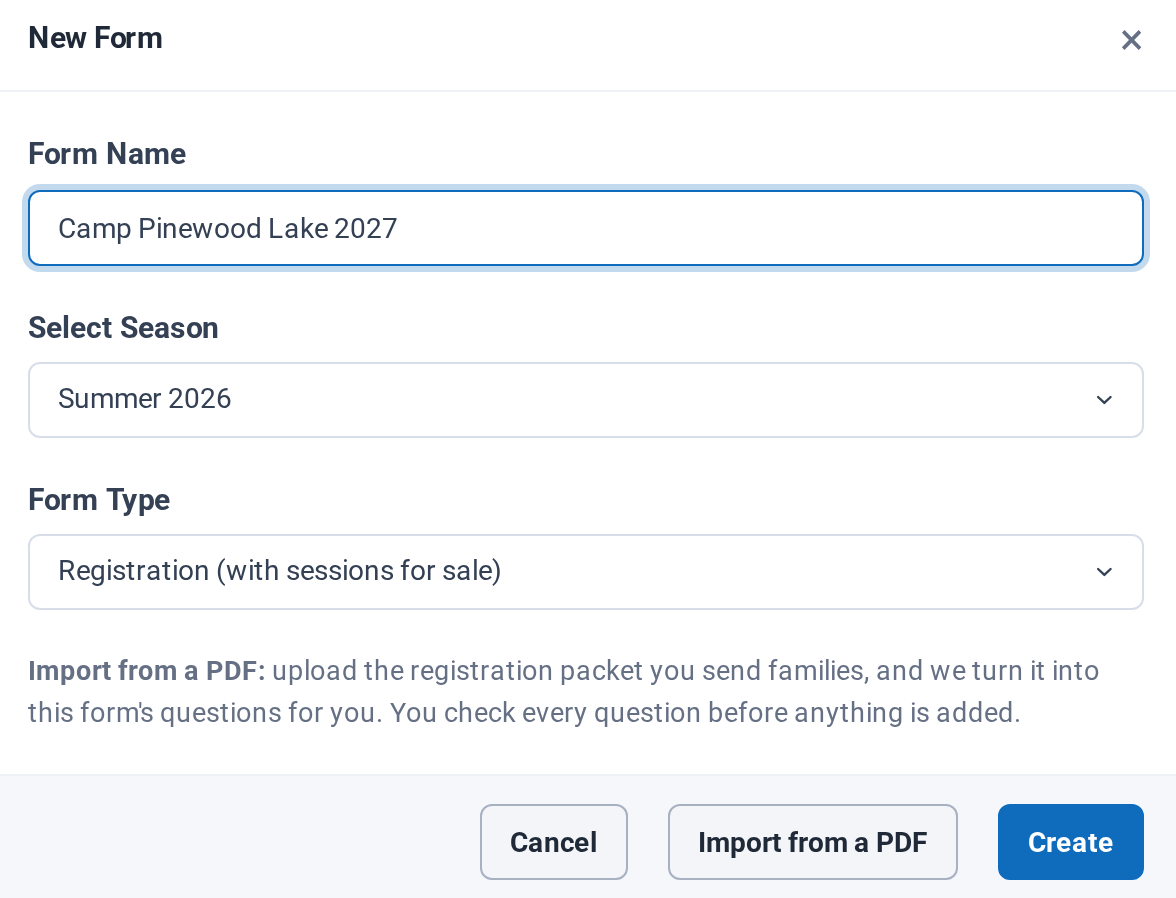
Go to Forms, click New Form, name it, and click Import from a PDF instead of Create. Then upload the packet you send families today. Typed and scanned PDFs both work.
2. Campium reads every page
Campium reads the packet in page order and turns it into a form: section headings, questions, check boxes as choices, required answers, "if yes, explain" follow-ups, waiver text, and signatures. You can leave the page while it works and come back.
3. You review it beside your packet
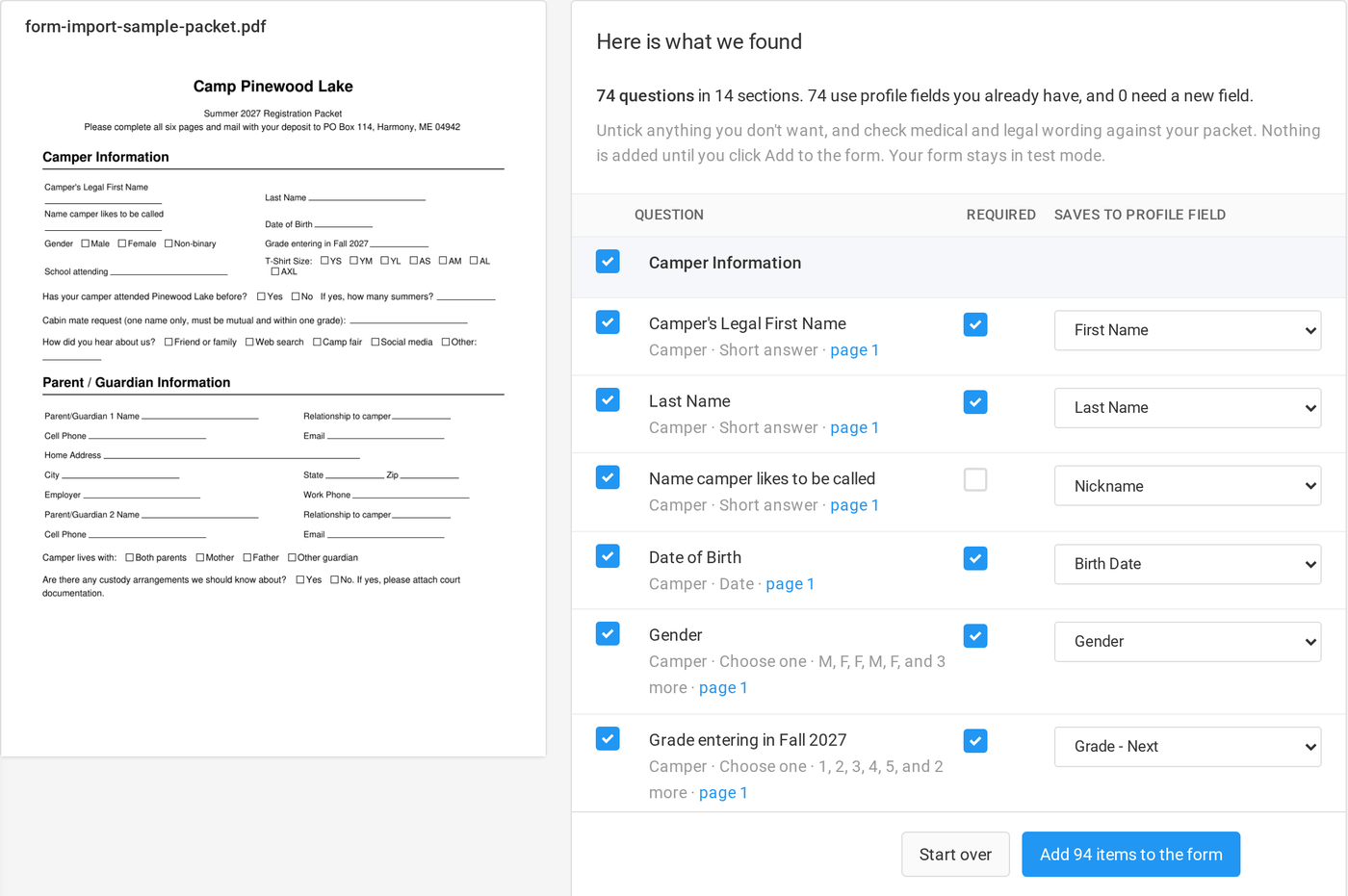
The review screen shows your PDF on the left and what Campium found on the right. Each question shows who it is about (the camper, guardian 1, or guardian 2), what kind of answer it takes, the page it came from, and the profile field the answer saves to.
Most questions are matched to fields you already have, so "Date of Birth" saves to Birth Date and "Grade entering in Fall 2027" saves to your grade field. Where there is no match, Campium creates a new field. You can untick anything you don't want, change which questions are required, or pick a different field before adding.
4. Add it to your form
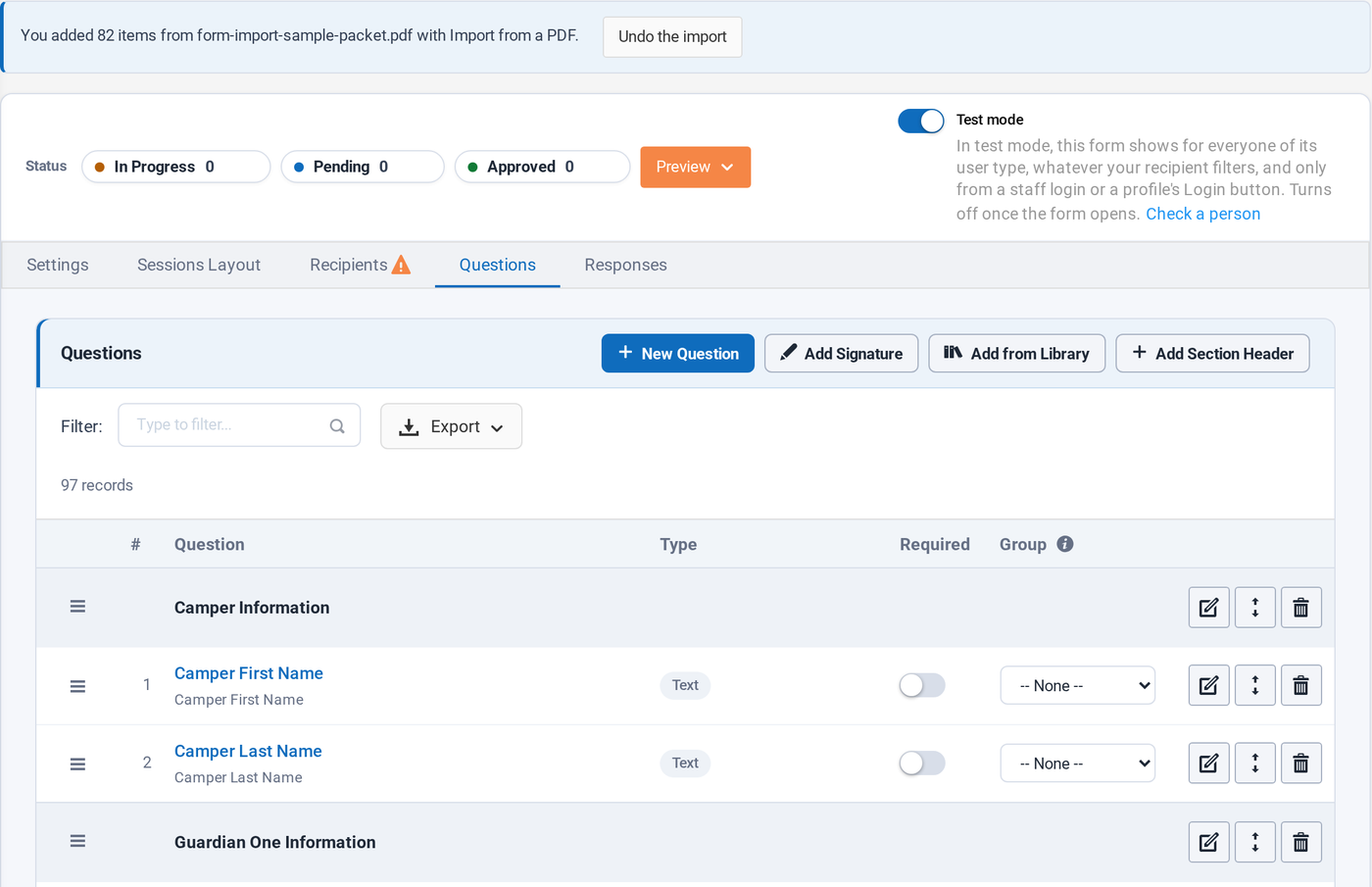
Click Add and the questions go onto your form, in order, with their sections and follow-ups. From there it is a regular Campium form: edit wording, reorder, add sessions and payment options, and preview it the way a family will see it.
Built so you stay in control
- Nothing is added until you say so. The review screen is a proposal. Your form only changes when you click Add.
- Your form stays in test mode. Families do not see it until you open it.
- Undo for a week. If an import is not what you wanted, Undo the import takes those questions back off the form.
- No card or bank details. Payment fields on a paper form are always left out and listed, so you know what was skipped. Payments and session choices come from your Campium setup.
- Check medical and legal wording. Compare waivers and medical questions against your packet before you add them, the same as you would with any new form.
Good to know
- Import from a PDF builds camper registration forms: questions about the camper and their guardians. Staff application packets are not supported yet.
- PDFs can be up to 10 MB. A Word file needs to be saved as a PDF first.
- A very long packet may need to be imported in two parts.
Common questions
Do I have to retype anything?
No. Campium reads the questions, choices, and wording from your PDF. You review them, change anything you like, and add them in one click.
Does it work with scanned packets?
Yes. Typed and scanned PDFs both work, up to 10 MB. If your packet is a Word file, save it as a PDF first.
Is anything added to my form without my approval?
No. Nothing is added until you click Add, and your form stays in test mode until you open it to families. For a week after you add an import, you can undo it.
What about credit card and bank details on my packet?
Campium always leaves card and bank details out. Payments and session choices come from your Campium setup instead.
Try it
Already a Campium customer? Open Forms, click New Form, and choose Import from a PDF. New to Campium? Book a demo and bring your packet. We will import it on the call. See the Import from a PDF feature page and our camp registration software guide for more.