Introducing the Staff Scheduler: Plan Shifts with Ease
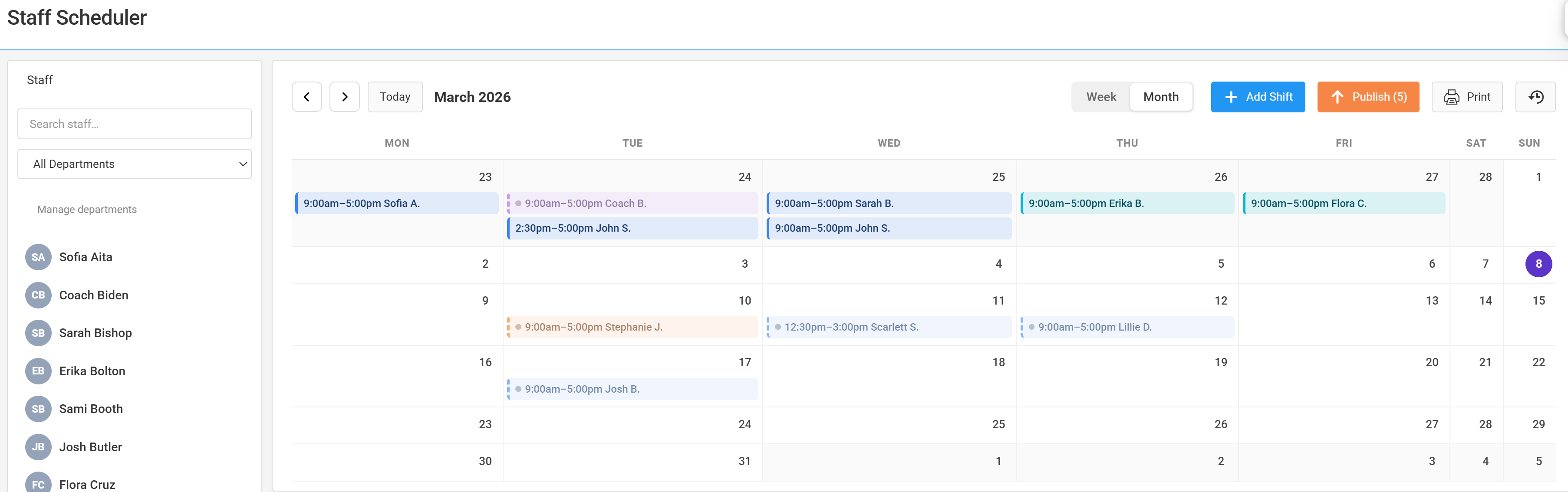
We're excited to announce the Staff Scheduler, a new tool built into Campium that makes planning and managing staff shifts simple. Whether you run a summer camp or after-school program, the Staff Scheduler helps you create schedules, assign staff to shifts, and keep everyone informed-all in one place.
Why Staff Scheduling Matters
Coordinating staff across departments, days, and times can be time-consuming and error-prone. Paper schedules and spreadsheets are hard to update and easy to misplace. The Staff Scheduler replaces that workflow with a visual calendar, drag-and-drop assignments, and automatic notifications so your team always has the latest schedule.
Key Features
Visual Week and Month Views
Switch between week and month views to see your schedule at a glance. Navigate forward and backward with arrow buttons, or jump back to today with one click. Your view preference is saved so you pick up right where you left off.
Three Ways to Add a Shift
Add shifts the way that works best for you:
- Add Shift button - Click Add Shift, fill in the date, start and end times, assign a staff member (or leave as an open shift), choose a department, and add optional notes.
- Drag a staff member onto a day - Find the staff member in the sidebar, drag them onto the calendar day you want, and the form opens with that person and date already selected.
- Click on a day - Click any empty day on the calendar to open the Add Shift form with that date filled in.
Drag to Move Shifts
Need to reschedule? Click and hold a shift block, drag it to a new day, and release. The shift moves automatically-no need to re-enter details.
Departments and Color Coding
Assign each shift to a department (e.g., Kitchen, Front Desk, Waterfront). Each department has its own color so you can quickly see which area a shift belongs to. Open shifts (unassigned) appear in gray. You can manage departments and their colors directly from the scheduler.
Publish and Notify
Shifts stay in draft mode until you publish. When you're ready to share the schedule with staff, click Publish and choose how to notify:
- Only notify staff with new or changed shifts - Sends emails only to people whose shifts were added or updated.
- Notify everyone with upcoming shifts - Emails everyone who has a shift in the schedule.
- Don't notify anyone - Publish without sending emails.
Staff can view the published schedule in the parent portal, and you can see a full publish history-who published, when, and who was emailed.
This Week Summary
The sidebar shows a quick summary for the current week: total shifts, open shifts that still need someone assigned, and total scheduled hours. Use it to spot gaps and balance the workload.
Print for the Break Room
Need a paper copy for the break room or office? Click Print to open your browser's print dialog. The schedule prints in landscape with the current view and date, or save as PDF for sharing.
Filter and Search Staff
Use the search box to find staff by name and the department dropdown to filter the list. This makes it easy to assign shifts when you have a large team.
Getting Started
The Staff Scheduler is available in the Campium admin area for organizations that have the module enabled. If you're already a Campium customer and want to use the Staff Scheduler, contact your administrator or reach out to us to enable it.
If you're new to Campium and want to see how the Staff Scheduler fits into our camp management software, book a demo and we'll walk you through it.
See the full feature overview: Camp Staff Scheduling Software.